



Overview
Kylas Caller App helps users connect their cloud telephony apps with Kylas CRM. Users can configure this app to create new leads/contacts in the CRM whenever a call is received from a new number. Users can also initiate calls from within the system. This integration can be used with leading service providers like Tata Tele.
Tata Tele also allows:-
1) Upload Kylas Leads and Contacts in the IVR
2) Create campaign from Kylas
3) Start the campaign from Kylas which will call all leads added in the campaign one by one automatically while the agent is on a session call.
4) Users can add their Kylas leads and contacts as lead lists in Tata Tele and create dialer campaigns that starts directly from Kylas.
Tata Tele also allows:-
1) Upload Kylas Leads and Contacts in the IVR
2) Create campaign from Kylas
3) Start the campaign from Kylas which will call all leads added in the campaign one by one automatically while the agent is on a session call.
4) Users can add their Kylas leads and contacts as lead lists in Tata Tele and create dialer campaigns that starts directly from Kylas.
Steps to install the application:
- Click on the Install app button.
- Click on ‘Allow and Install’.
- After installation, sign up on the app.
- Verify your email and login.
- Navigate to ‘Installed apps’ under Marketplace.
- Click on ‘View Details’ of Kylas Caller app.
How to Connect an operator's account:
- Login to the Kylas caller application.
- Navigate to the ‘Connected Accounts’ section.
- Click on ‘Add Connected Accounts’.
- Choose the operator name of your IVR service provider.
- Enter the required information based on the operator chosen.
- Click ‘Save’.
- From the connected accounts listing app, copy the Webhook URL and paste it into the Webhook section of your IVR service provider in order to receive call logs automatically.
How to Add users in the app:
- Navigate to ‘Manage Users’ inside the SMS app.
- Click on ‘Add User’.
- Enter the Name and Email of the user.
- Choose the Role from Member or Admin.
- Choose the corresponding Kylas user from the list of Users available in your Kylas account.
- Click on Save.
- The users who have been added as an ‘Admin’ on the Kylas caller app, will be able to view all menu items in the application such as Call logs, Connected Accounts, Manage Users, API Keys.
- However, the users who have been added as ‘Members’, will be able to view only the following menu items Call logs and they will be able to view logs of the calls made or received by them.
How to map Agents on the Kylas caller app:
- On the connected accounts listing page of Kylas caller application, Click on view agents.
- Click on the 'Add Agent' button.
- Map the Kylas caller user with the Agent of your IVR service provider.
- These users will be stored as owners of the calls that they receive through the IVR.
How to Call using click to call application from Kylas Sales CRM:
After installing the Kylas caller application and configuring your account:
- Login to Kylas Caller application.
- Navigate to Kylas Sales CRM.
- Navigate to any Lead or Contact listing page or Details page.
- Click on the blue color call icon shown with the Lead or Contact's phone number.
- Click on the operator name that you want to use from the available options.
- The call will be placed.
- After the call is disconnected, navigate to the Lead or Contact's details page call log section to view the call log.
- The call recordings are also attached with every call log after a few minutes provided that the IVR has the ability to send recordings.
How to use Tata Tele Bulk Dialer?
Connect Tata Tele Smartflo Account:
- After installing the Kylas Caller application, navigate to 'Connected Accounts'
- Click 'Add Connected Account' button.
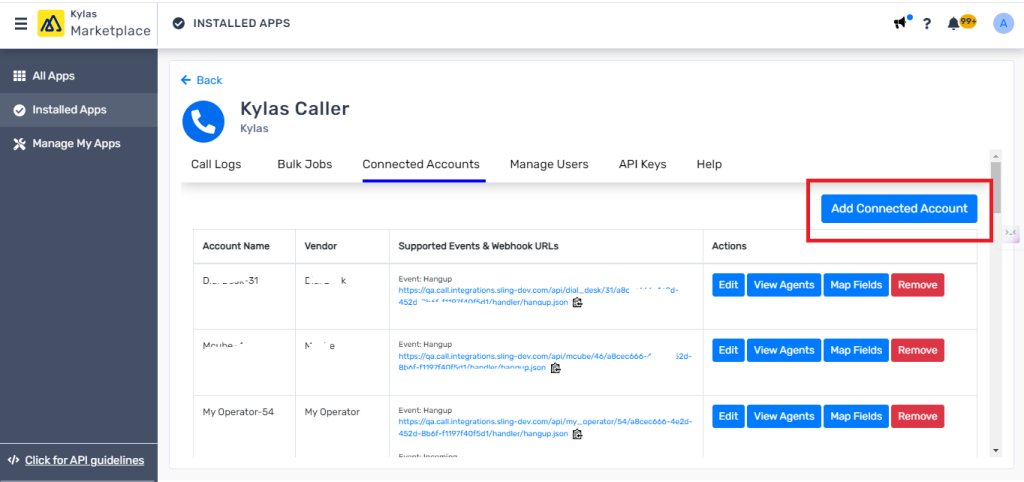
3. Choose 'Tata Tele Smartflo' from the list of vendors.
4. Enter your Account name, Access token and Caller ID (if available).
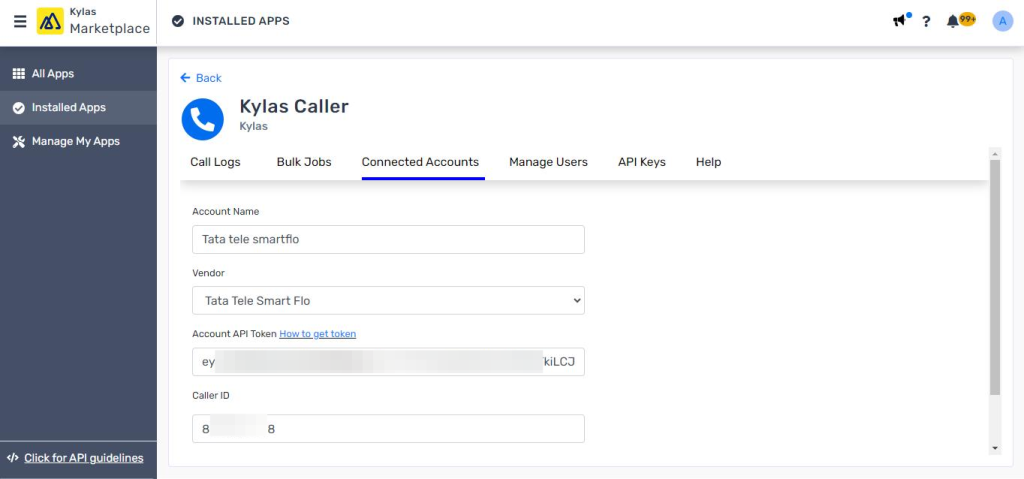
5. Click 'Save' to save the account details.
Map Tata Tele Agents with Kylas users:
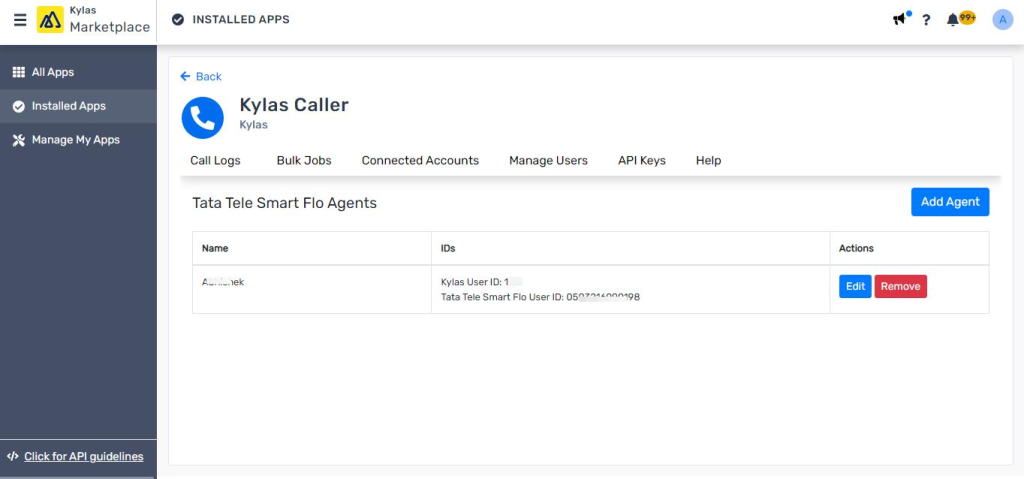
Map your Kylas users with Tata tele agents to create call logs in the name of correct Kylas user
- Navigate to 'Connected Accounts' listing page
- Click View Agents -> Add Agent
- Map Kylas user with Tata tele Agent
Setup webhook URLs in Tata Tele account:
In order to get the call logs created in Kylas and to get the call pop up while an in progress call, you need to add webhooks in Tata tele by following the below steps
- Login to your Tata tele cloud services account as an admin user.
- Navigate to API Connect-> Webhooks
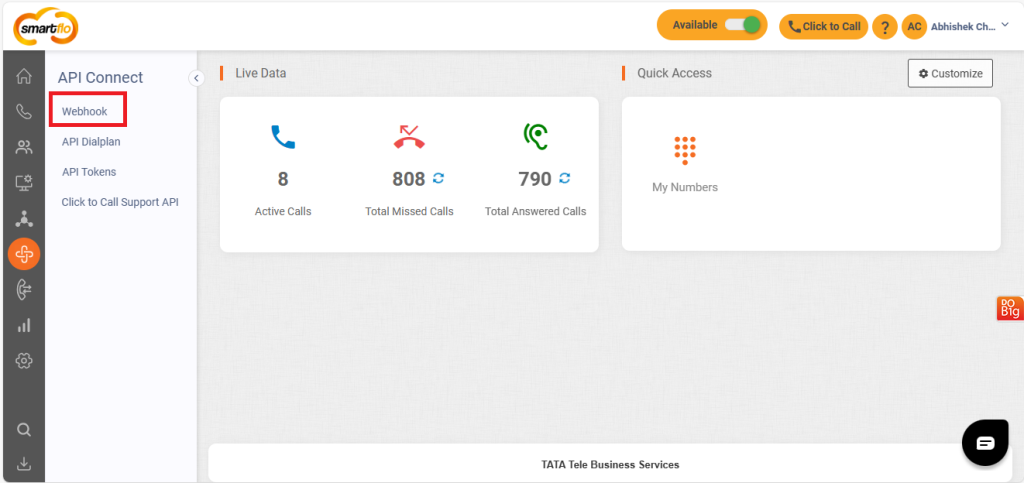
3. Click 'Add Webhook'
4. Enter the Name of the webhook and copy the Webhook URLs from Kylas Caller Connected accounts listing page, and add them one by one in each webhook of Tata tele with the below events
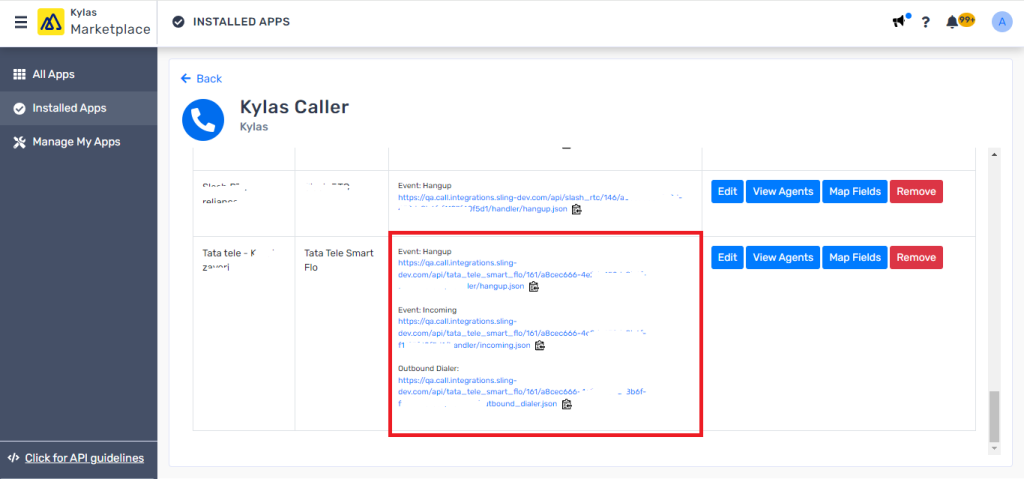
5. Choose the Request as POST
6. Choose the Content-Type as application/json and Date time format as Default or ISO 8601.
7. Save all webhooks with correct URLs to receive webhook events for selected activities in Tata tele
Setup VPN and Smartflo smartphone:
Please connect with Tata tele support team to get the VPN and smartflo dialer setup for you in order to get the IVR calls.
Make individual outbound call:
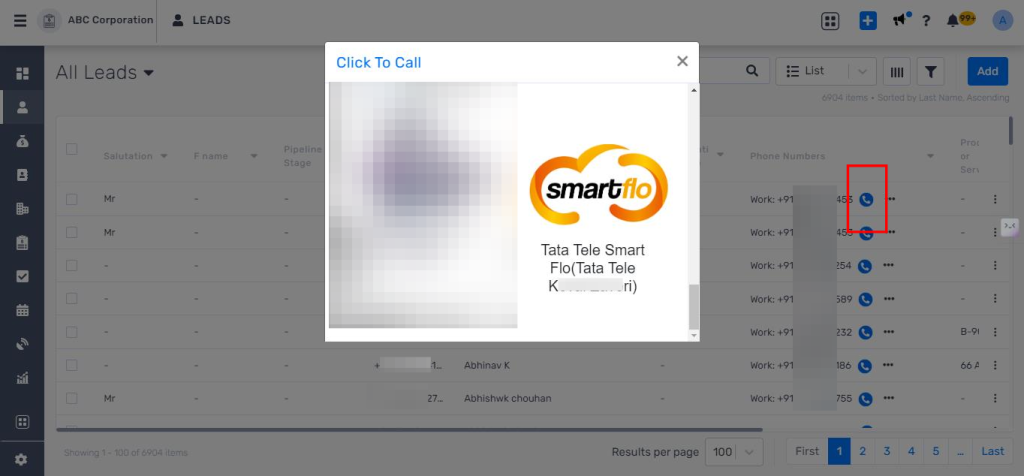
Please follow below steps to make individual click to call
- Navigate to any Lead or Contact's listing page.
- Click the 'Click to call' button.
- Choose Tata tele smart flo from the list of vendors
- Answer the call on your smart flo dialer after that it will connect to the Lead or Contact.
Create bulk dialer campaign:
Please follow below steps to create Lead lists in your Tata tele account and create Dialer campaign with the created lead lists
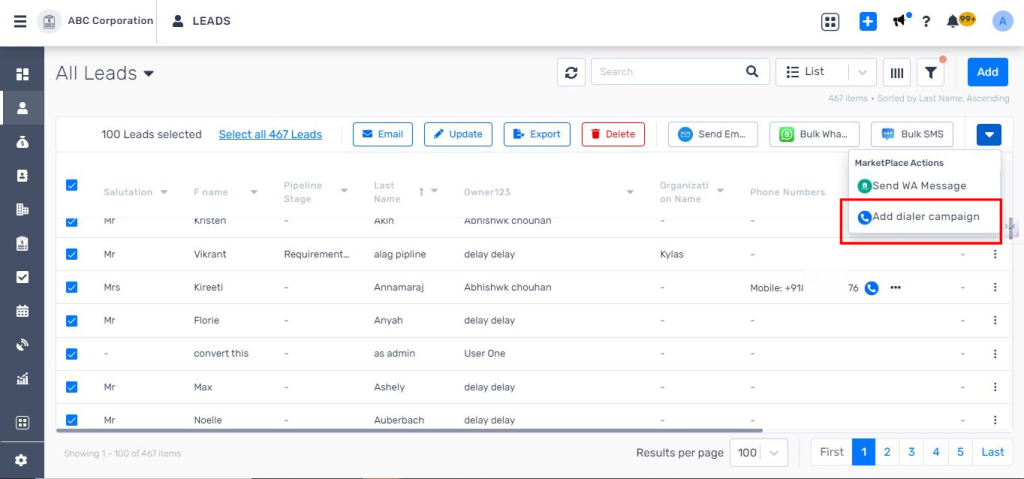
- Navigate to Leads, Contacts or Deal listing page
- Select the Leads in bulk
- Click on the 'Add dialer campaign' button.
- Choose your Tata tele account from the list
5. Enter the Lead list name and Description
6. Click 'Next'
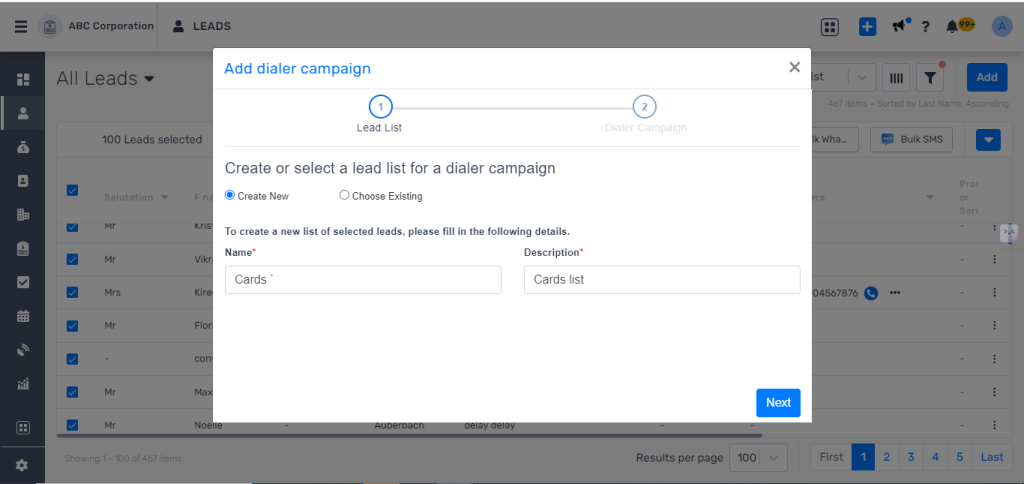
7. As soon as you will click next, Kylas will perform the following actions in your Tata tele account
-
- Kylas will group the selected Leads or Contacts by Owners and will create multiple Lead lists in Tata tele for each owner.
- Kylas will add all selected Leads or Contacts in the created Lead lists in Tata tele.
- You can check the created lead lists in your Tata tele account.
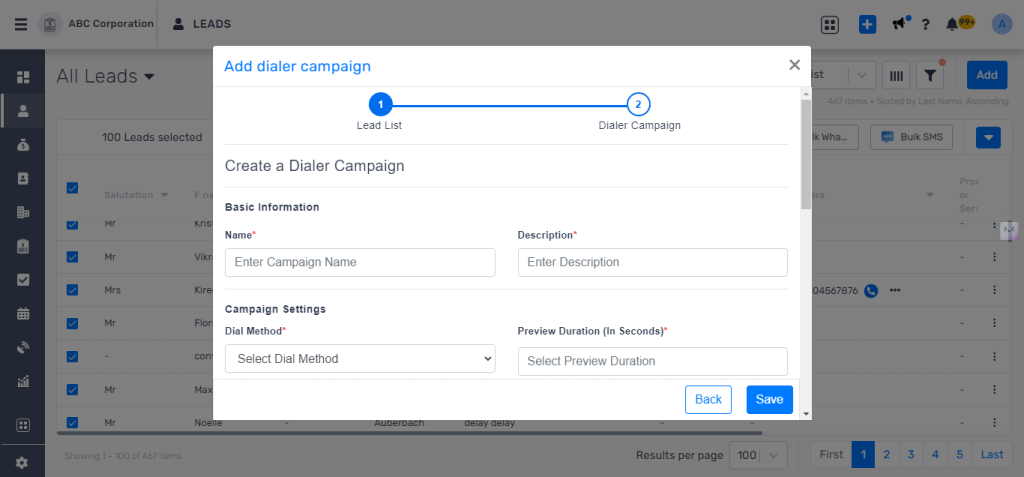
12. Click 'Save' to create the dialer campaign in Tata tele.
Start Bulk Dialer campaign:
Please follow the below steps to start a campaign
- Navigate to Kylas home page
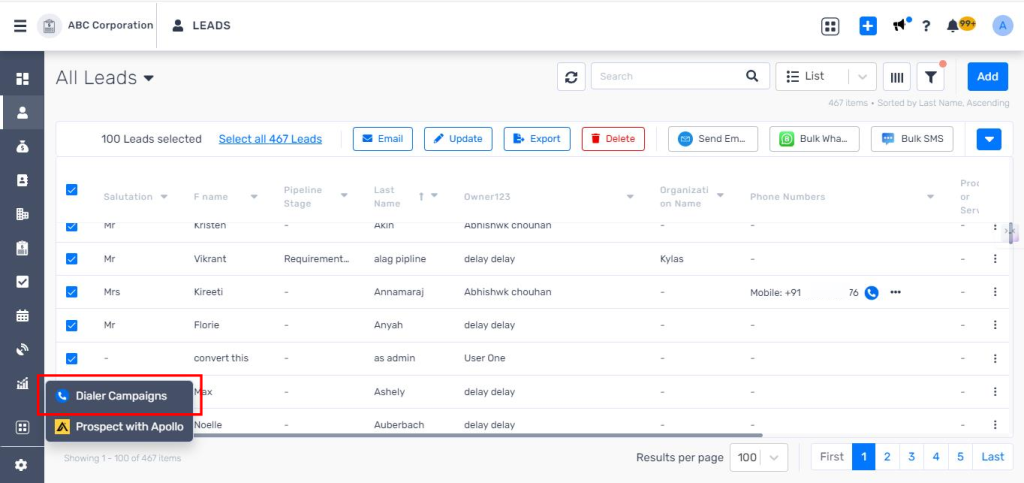
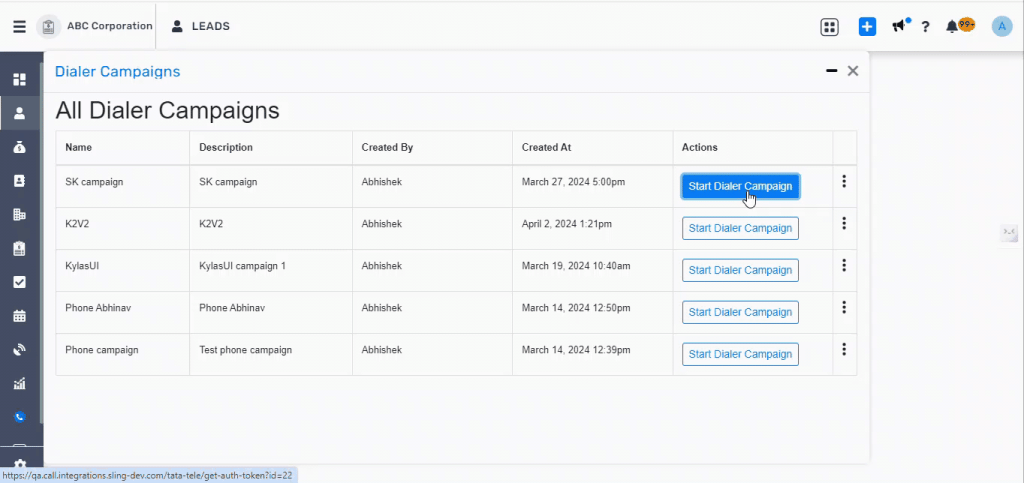
- Click on the Global marketplace action -> Dialer campaigns
3. Click on the 'Start campaign' button from the list of campaigns.
4. Enter your Tata tele login credentials that you use for your Tata tele agent login
5. As soon as you will enter the valid credentials, the campaign will start
6. You will receive a call on the Tata tele smart flo phone and as soon as you will answer the call, the campaign will start and it will start calling the leads available in the lead lists
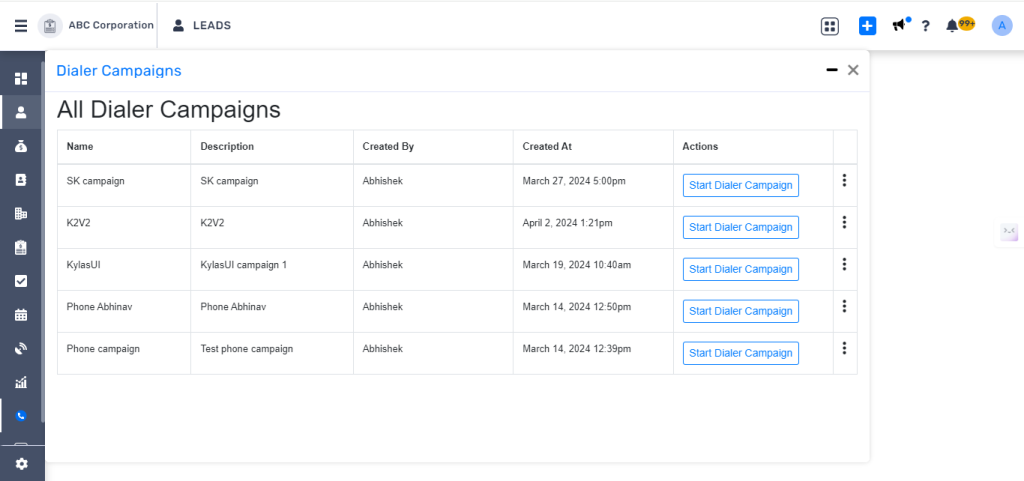
7. You can Hang up the call from the above page.
8. After a call with any lead gets completed, you can also update the disposition and start break.
9. You can also stop the session call after the campaign is completed via click on the 'Stop session call' button.
10. You will also receive pop ups when the calls are connecting to each lead.
11. All the call logs will be created in Kylas.