


Overview
Connecting Gmail with a Kylas sales CRM can save time and increase efficiency by automating tasks such as lead capture, contact synchronization, and email tracking. It also allows sales teams to access up-to-date customer data for more informed communication and a streamlined sales process. Additionally, by reducing manual data entry and streamlining workflows, connecting Gmail with a Kylas sales CRM can increase sales team productivity, ultimately leading to more successful sales.
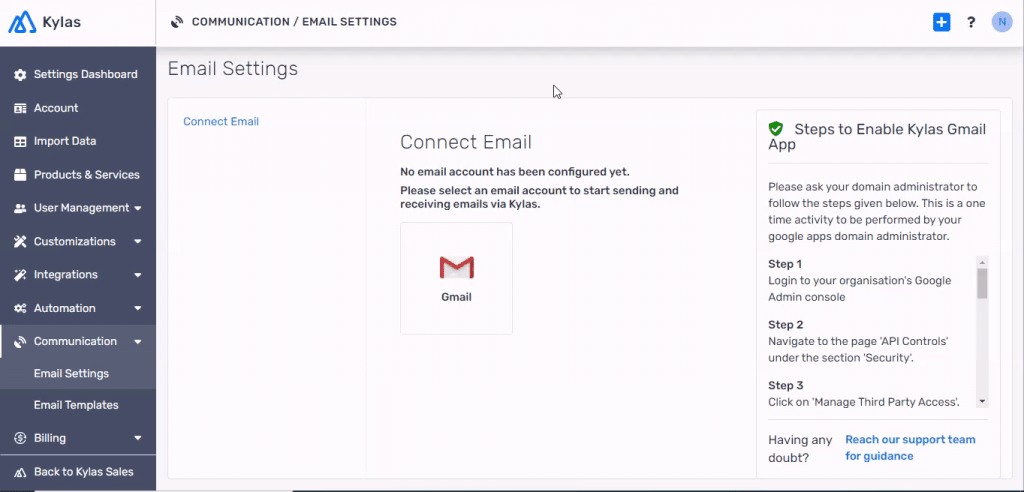
- Login to Kylas and Navigate to Setup -> Communication -> Email Settings.

Install the app:
- Click on the 'Gmail' tile. This will open the Gmail authentication window.
Signup and Sign in
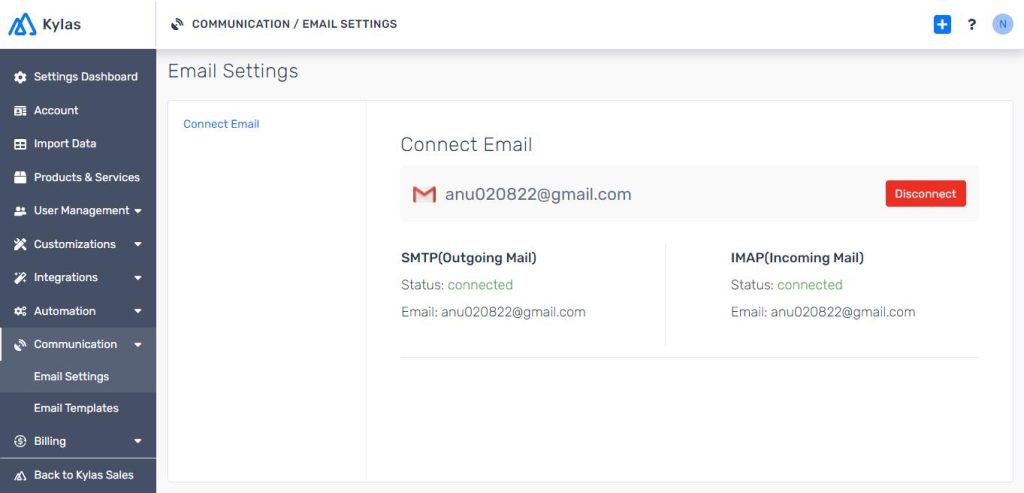
- Complete the Gmail authentication process and you will see your Gmail account connected with Kylas CRM.
How to send emails to leads/contacts from Kylas CRM
- Login to Kylas and Navigate to any Lead/Contact details page. Click on the email icon on the Lead/Contact/Deal details page.
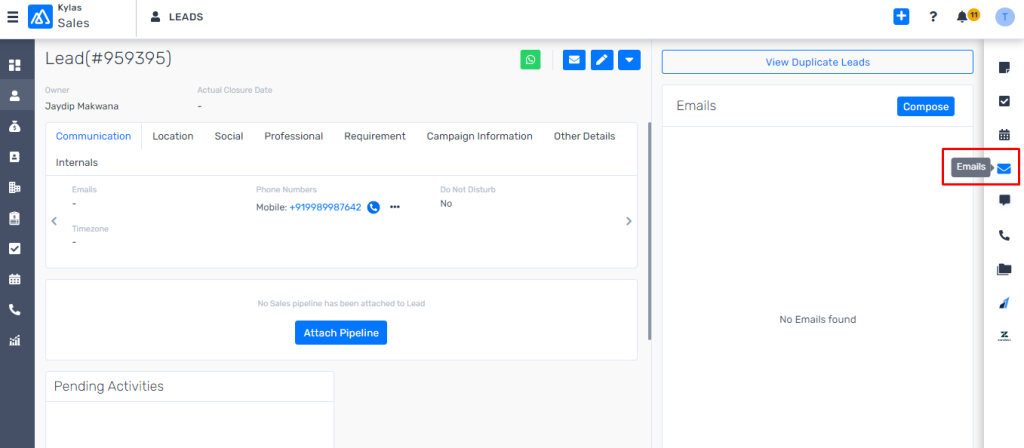
- After step 1, the email composer will be opened with the name of lead/contact/contacts associated with the deal auto-populated in the To section.

- Draft the message to be sent to the recipient. Add/remove recipients in To, Cc, or Bcc sections; if necessary.

- The send button will become active when there is at least 1 recipient for the message. Click on the Send button, to initiate the email sending process.
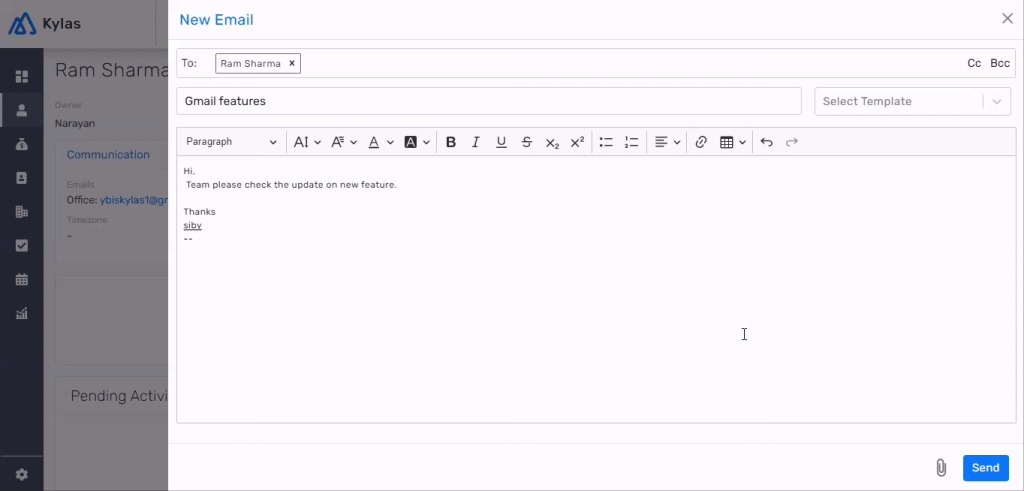
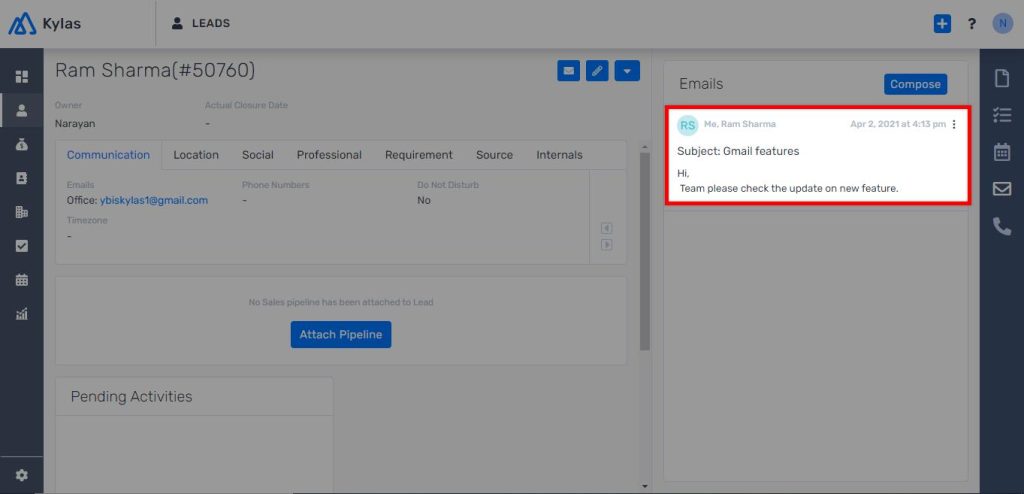
- Once the email is sent, a toaster message will be displayed and the sent mail can be viewed on the Email section on the productivity sidebar.