


Overview
Interakt is one of the most popular WhatsApp business service providers. Using the Interakt integration with Kylas, users can sync leads and contacts with Interakt to initiate bulk messaging campaigns. You can also send and receive one-to-one messages from Kylas.
How will it work?
App Info:
Inteakt (https://www.interakt.shop/) Is one of the popular WhatsApp business service providers. With Kylas and Interakt integration, Kylas users can sync their Leads and Contacts data in Interakt and also send and receive WhatsApp messages frm Kylas.
Enter Kylas API key:
- Install the Interakt application on your Kylas account.
- Sign up via your email id and verify the email account.
- Navigate to the Kylas Marketplace -> Installed apps -> View Details of Interakt app
- Enter your email id and password to login
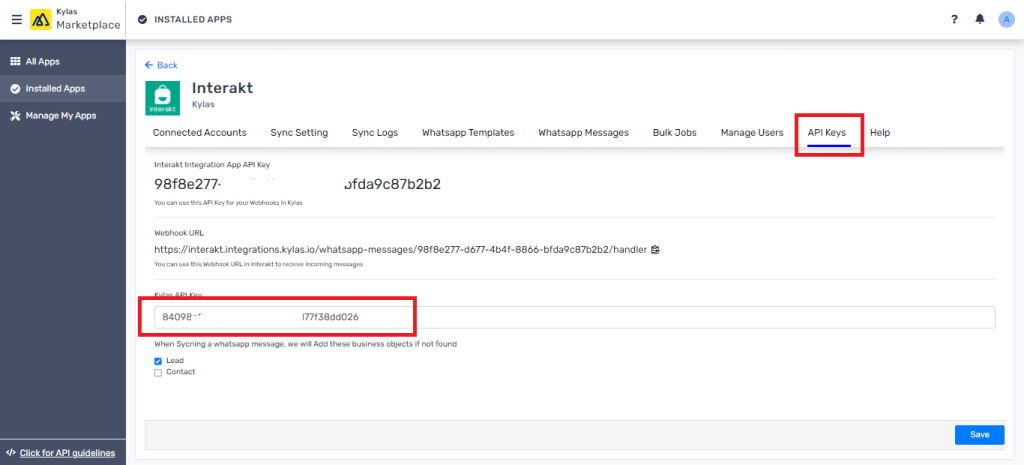
- Click ‘API Keys’ section
- Enter Kylas account API key and click ‘Save’
- Select Lead or Contact or both checkboxes to let the app create Leads or contacts in your Kylas account when an incoming WhatsApp message comes from a new prospect.
Connected Accounts:
Connect your Interakt account by following these steps
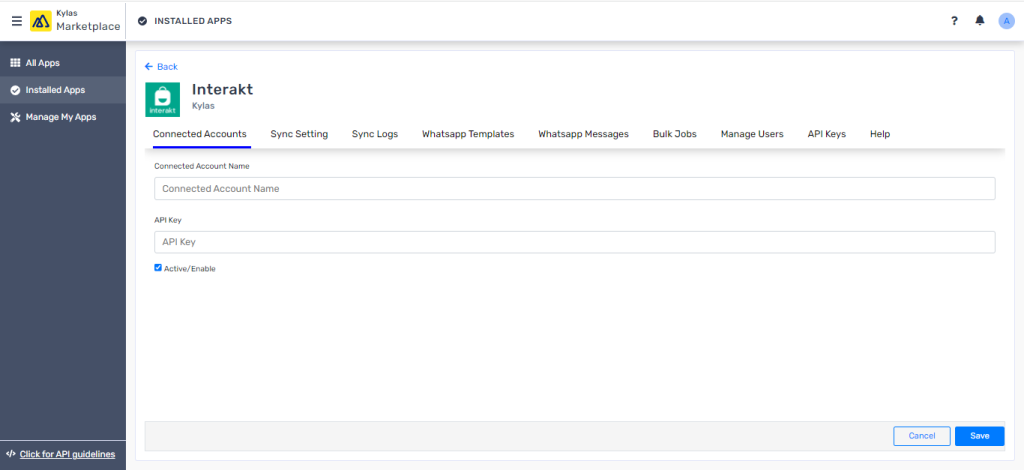
- Navigate to ‘Connected Accounts’ section of Interakt application
- Click ‘Add Connected Account’
- Enter name of the connected account and API key
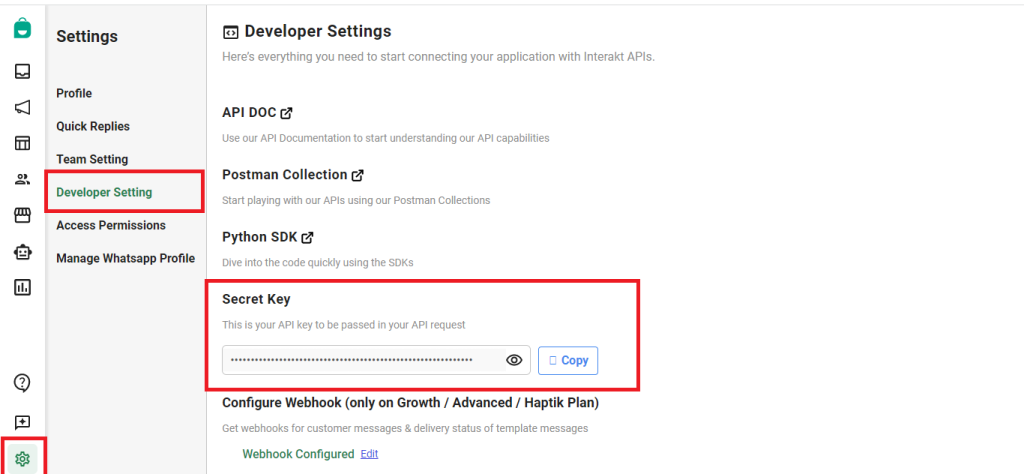
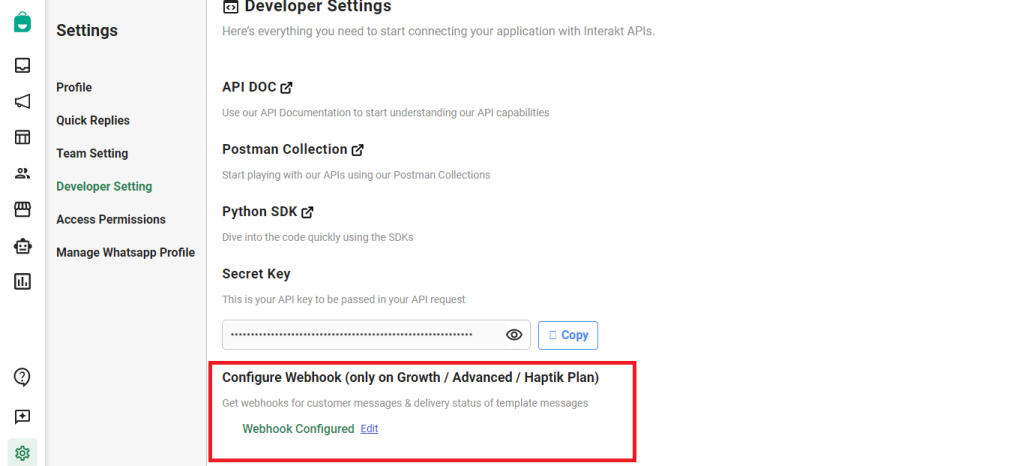
- To get the Interakt API key, Login to your Interakt account -> Settings -> Developer setting -> Copy the Secret Key as shown in the below screenshot.
- Click ‘Save’ after entering the Interakt API key
Sync your Kylas Leads, Deals and Contacts to Interakt:
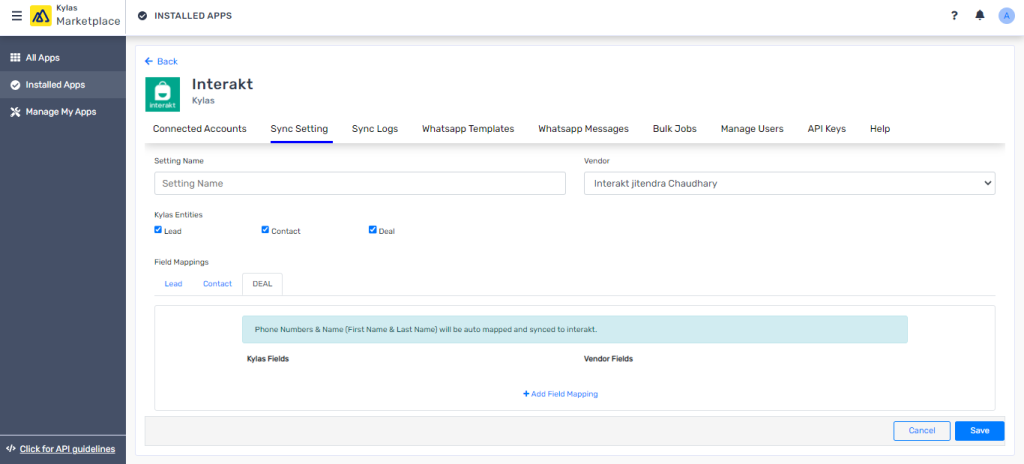
- After connecting the Interakt account, navigate to ‘Sync Setting’
- Enter the Setting Name and Choose the account
- Select which entities out of Leads, Contacts and Deals you would like to sync with Interakt
- Based on your selection, you will see the field mapping section
- Choose the Kylas fields and the Interakt fields in order to send the data from Kylas to Interakt
View Sync Logs:
You van view the logs of the entities synced successfully or failed to sync with interakt
- Navigate to ‘Sync Logs’ section of the Interakt Application
- You can view the list of Leads, Contacts and Deals synced with Interakt along with the time of sync
Create WhatsApp Templates:
To send 1-1 WhatsApp messages, create copies of templates that are available in your Interakt Account
- Navigate to WhatsApp templates section of Interakt application.
- Click ‘Add WhatsApp Template’ button
- Enter the template Name – Make sure to enter the code name of the template as instructed in the tooltip content of the app.
- Enter other details like type of the template content etc, and save.
Send WhatsApp messages from Kylas:
You can send WhatsApp messages from Kylas by following below steps:
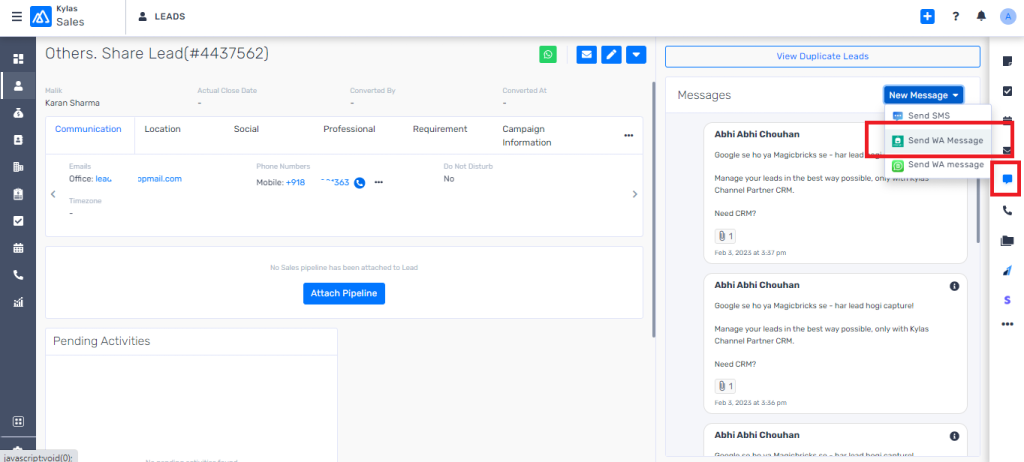
- Navigate to any Lead, Contact or Deal details page to whom you would like to send message
- Click on ‘Messages’ icon on the right-hand side activities section
- Click ‘New Message’ button followed by ‘Send WA Message’
- Choose the mobile number and template that you would like to send
- Click ‘Send’
- The message will be sent to Interakt followed by the end customer
- You can view the message logs and the status in the ‘Whatsapp Messages’ section of the application.
Receive Incoming Messages:
You can also receive the messages sent by customers in Kylas automatically
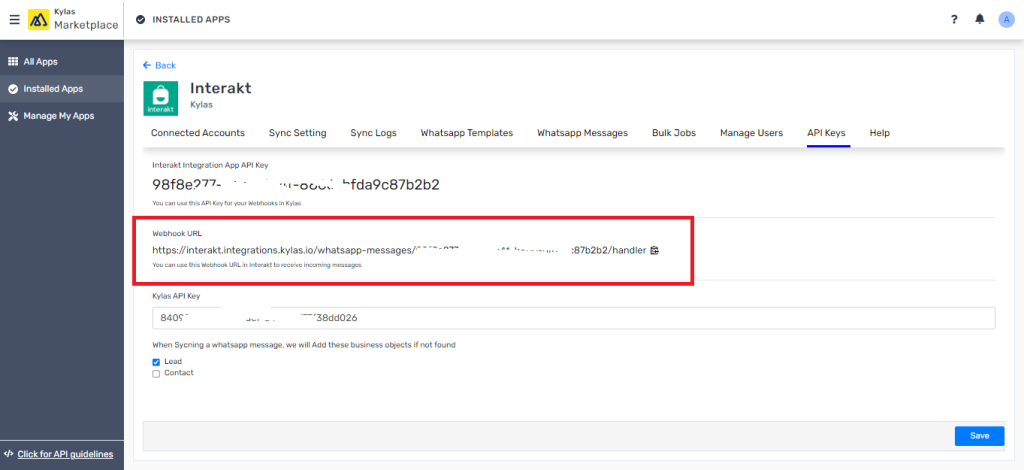
- Navigate to the Interakt application APi keys section
- Copy the Webhook URL displayed on the screen
- Configure this Webhook URL in your Interakt account by navigating Interakt -> Settings -> Developer Setting -> Webhook configuration
- Choose below events at the time of webhook configuration
- Message received from customers
- ‘Sent’, ‘Delivered’, ‘Read’, ‘Failed’ status can be set for both Template messages via API and Campaigns.
Bulk Messaging:
You can also send messages in bulk to many Leads and Contacts at once.
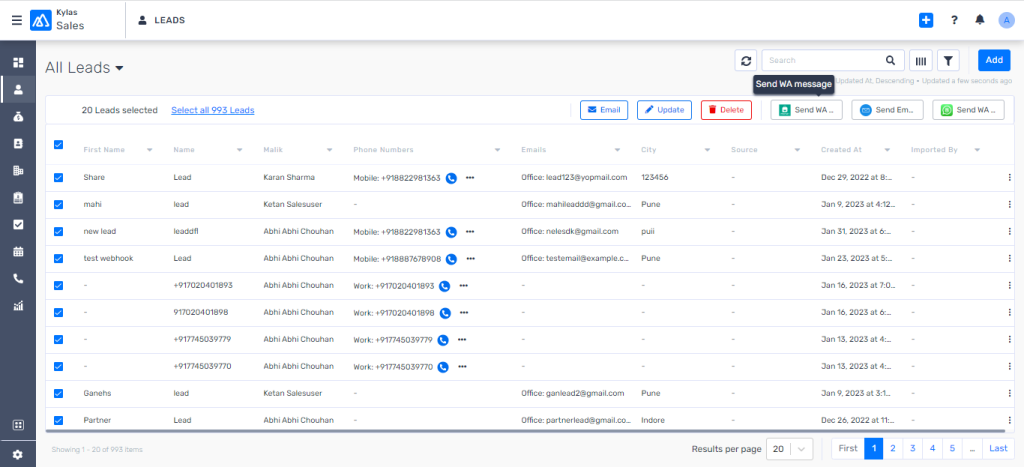
- Navigate to the Leads, Contacts or Deals listing page
- Select the entities you want to send message to
- Click ‘Send WA message’ on top right corner of the page
- Choose the template you want to send.
- Click ‘Send’
- The message will be sent to all Leads/Contacts one by one and it may take time to complete the bulk job
- You can view the bulk job status by navigating to the Interakt application -> Bulk Jobs
Manage Users:
You can add your Kylas users in the Interakt application to let them send WhatsApp messages to the Leads assigned to them.
- Navigate to the ‘Manage Users’ section
- Click ‘Add User’
- Enter the User name, Email, Role, and Kylas user
- Select ‘Allow bulk activity’ checkbox if you want the user to send bulk messages to their Leads/Contacts
- Click ‘Save’
- The user will be added to the Interakt application, and they will receive an Email with verification link.
Send Automated Messages:
You can also send automated templatized messages to the Leads or Contacts for use cases e.g. ‘Send a welcome message whenever a Lead is created in the CRM’
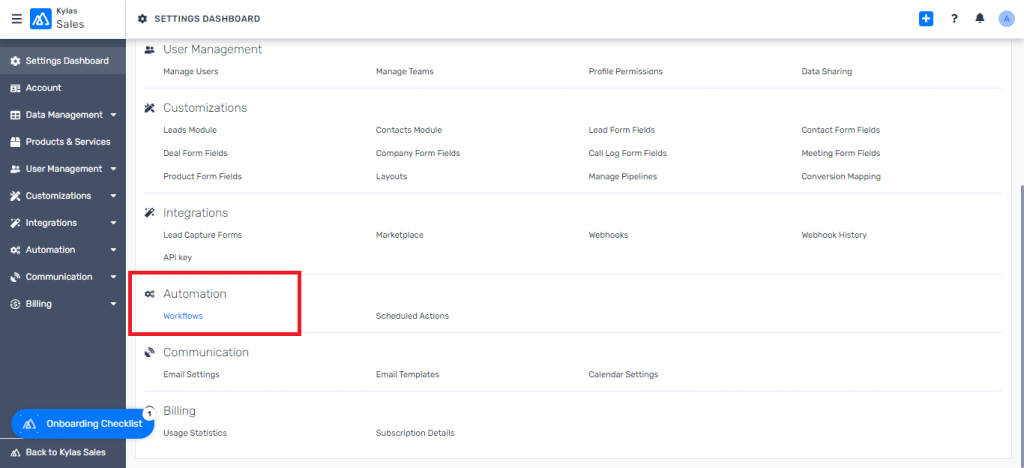
- Navigate to Kylas Dashboards -> CRM settings -> Automation -> Workflows
- Click ‘Add a workflow’
- Choose the entity on which you would like to create a workflow
- Enter the trigger and Conditions
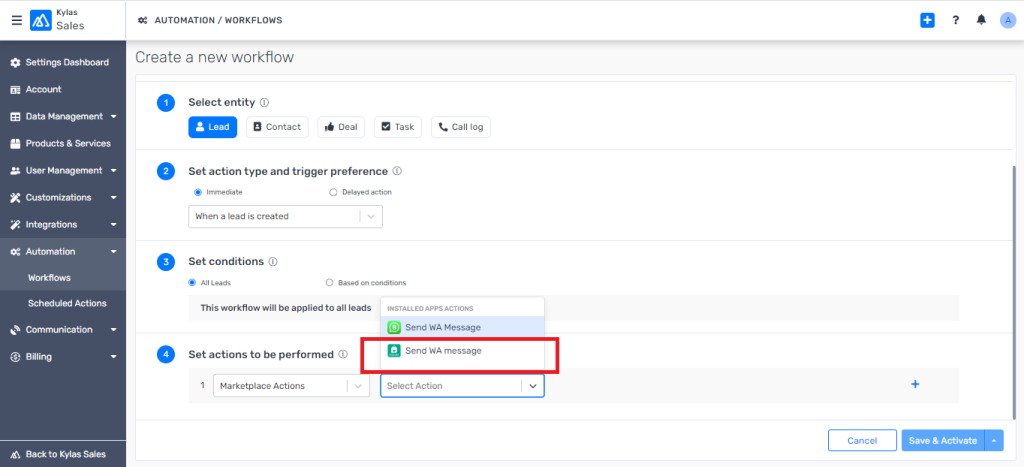
- On the Actions step, choose ‘Marketplace actions’ and Choose ‘Send WA message’ on the next dropdown
- Choose the template that you would like to send
- Click ‘Save’
- The app will send WhatsApp message to the selected Lead or Contact whenever the workflow will get executed