



Overview
Write mathematical formulae to calculate data from the existing fields such as commission based on the deal value, remaining payment based on the total amount and paid amount, etc.
This app helps you create as many mathematical operator based formulae as you want using +, -, x, /, % and much more. You can create workflows and automate calculations based on the required conditions.
This app helps you create as many mathematical operator based formulae as you want using +, -, x, /, % and much more. You can create workflows and automate calculations based on the required conditions.
Steps to Install the Application
- Locate the Kylas Field Calculator app in the All Apps menu under the Kylas Marketplace.
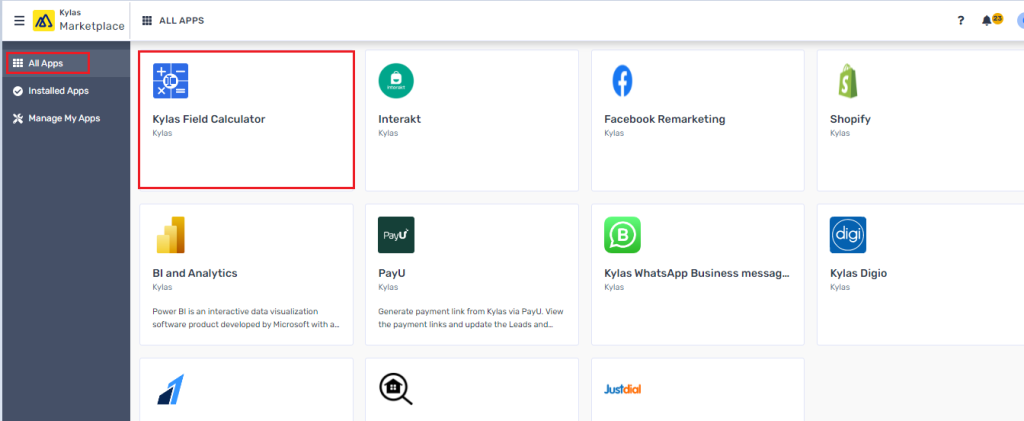
- Click on the app and then ‘Install App’ button
- Login using the Kylas Sales details and then click on the ‘Allow and Install’
- After installation Sign-up for the app
- Verify your email to login the app and enter the Kylas API key
- Navigate to ‘Installed App’ and click on ‘View Details’ for the Kylas Field Calculator app.
How to set up a Calculation Formulae:
- Login to the Kylas Field Calculator app
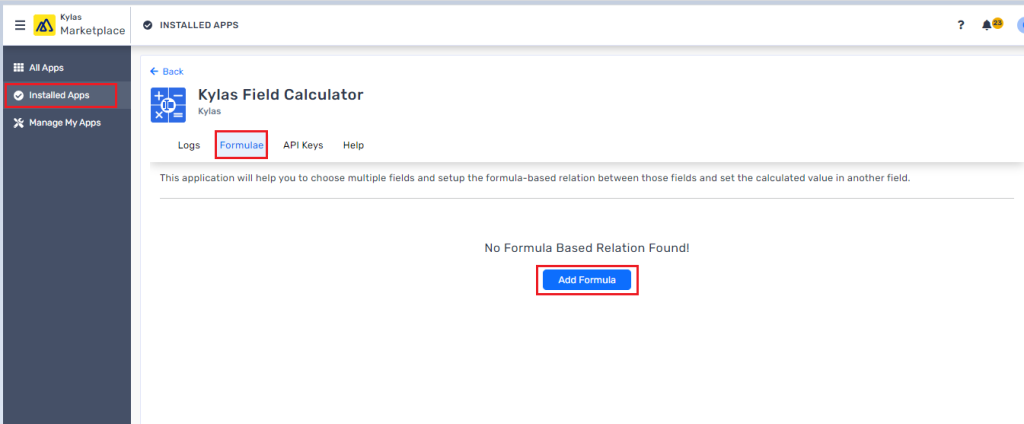
- Navigate to the Formula tab and click on the ‘Add Formula’ button
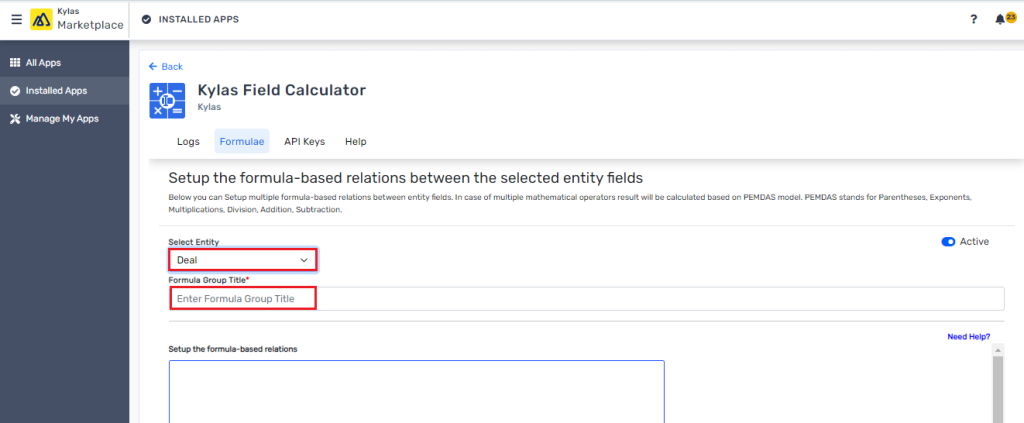
- Select the entity from the drop-down where the calculation needs to be performed
- Give a title/name to the group (You can include 1 or more formulas into a group)
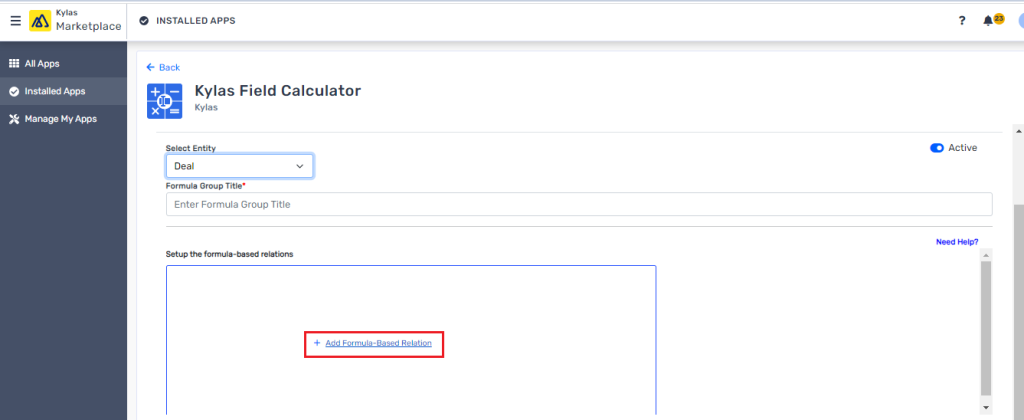
- Click on the ‘+Add Formula-Based Relation’ to set the calculation
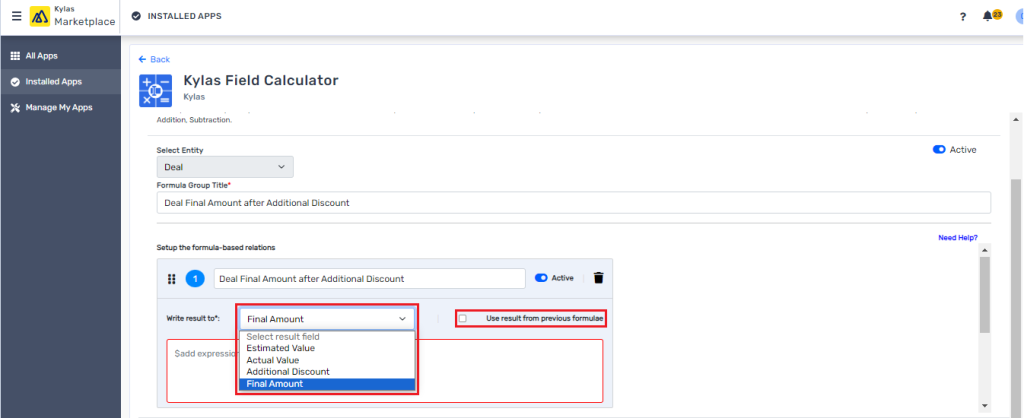
- Select a field from the ‘Write Result to’ drop-down into which the calculation result is to be seen. Also, you can select the checkbox if it is derived from a previous calculation.
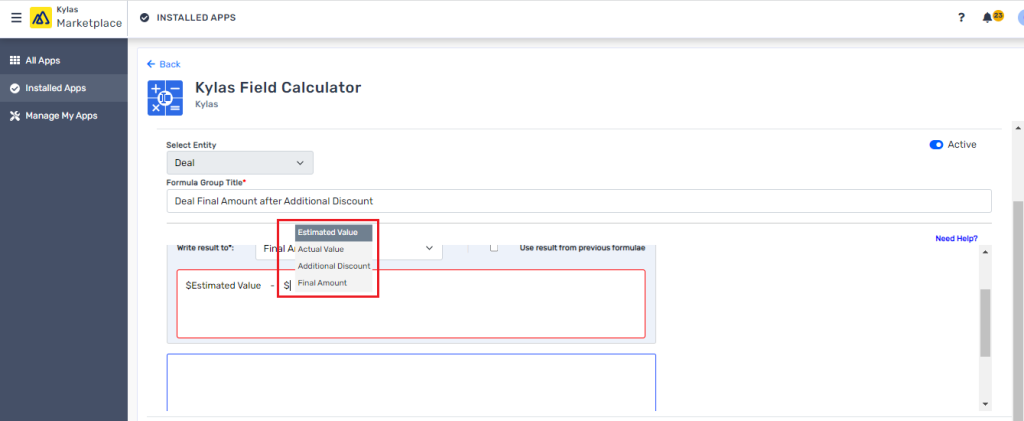
- Enter/Type ‘$’ in the ‘$add expression’ to view/choose the number field for the calculation. You can also use multiple operators for calculation such as +, -, / and *
- Comparison operators: Greater Than (>), Less Than (<) Equals (=) in a condition [E.g. (if($Field1 >= 5, 3, 4) will return 4 when $Field1 is 2]
- Percentage Calculation - ($Field1 * 10%) - $Field2
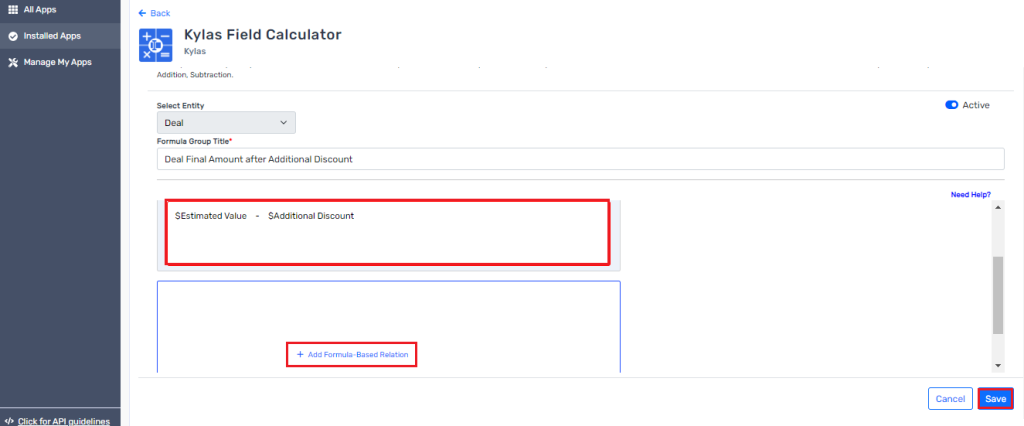
- Add more fields or create another formula and then save the field relation for the calculation.
How to Use the Set Formulae
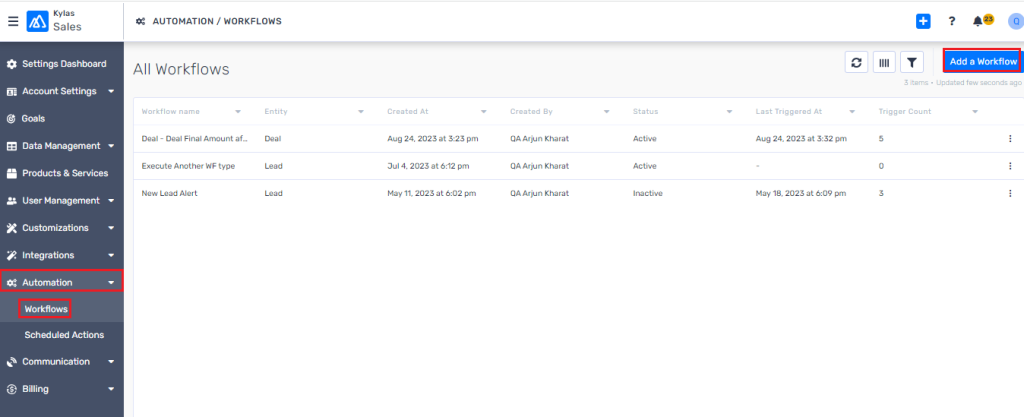
- Go to the Kylas Sales -> Automation -> Workflows -> Add a Workflow
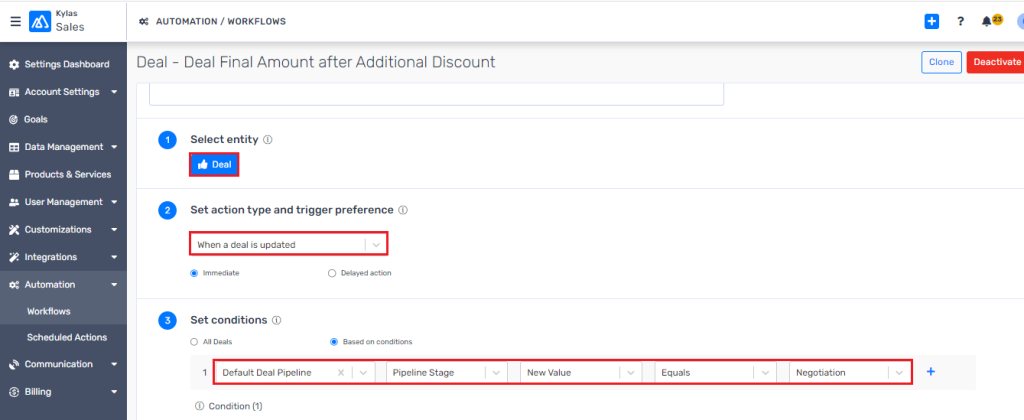
- Set-up workflow for the same entity used for formula setup.
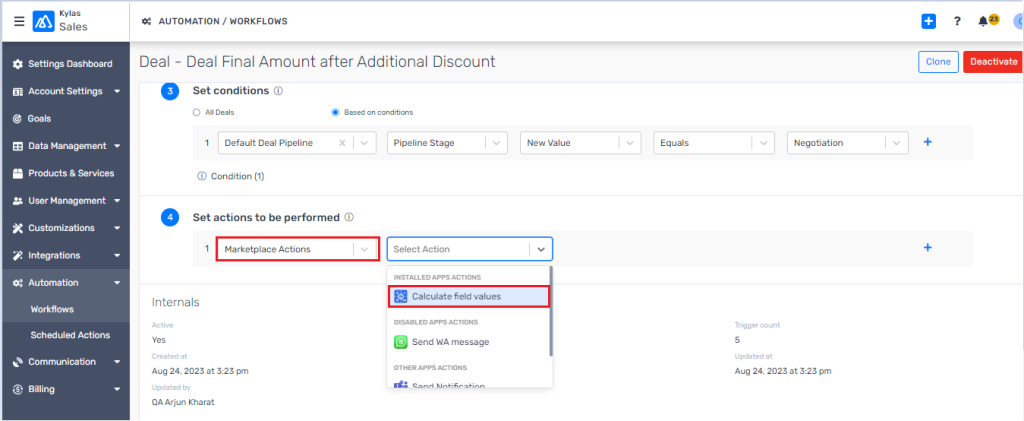
- In the action drop-down, select ‘Marketplace’ and then ‘Calculate field values’ from the next drop-down.
- Select the formula from the drop-down to perform the calculation action when the business condition meets.
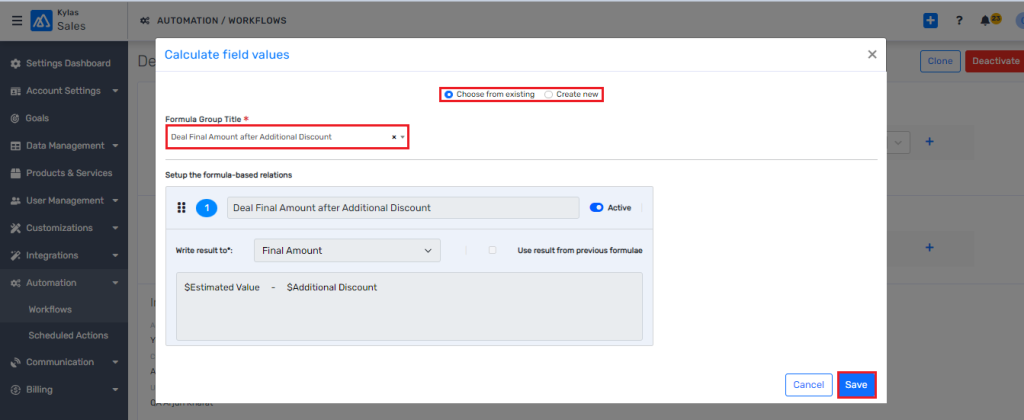
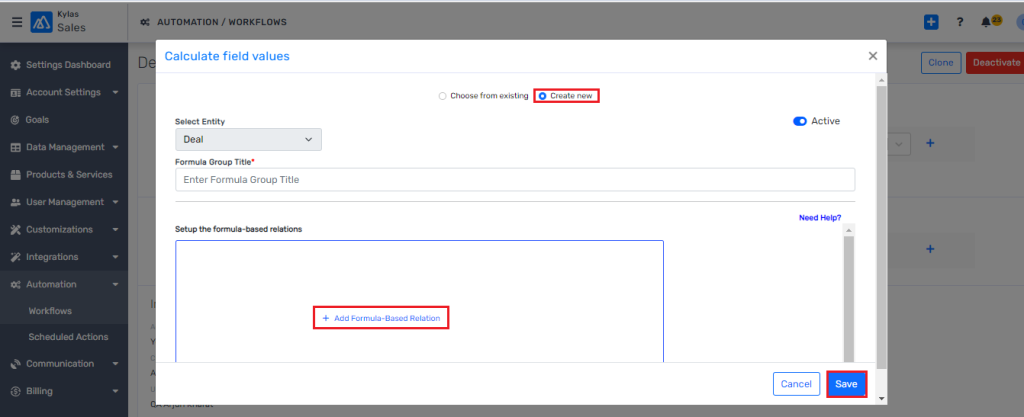
- You can set/create a real time formula from the ‘Create new’ option available on the top and the system will automatically select the entity type based on workflow entity.
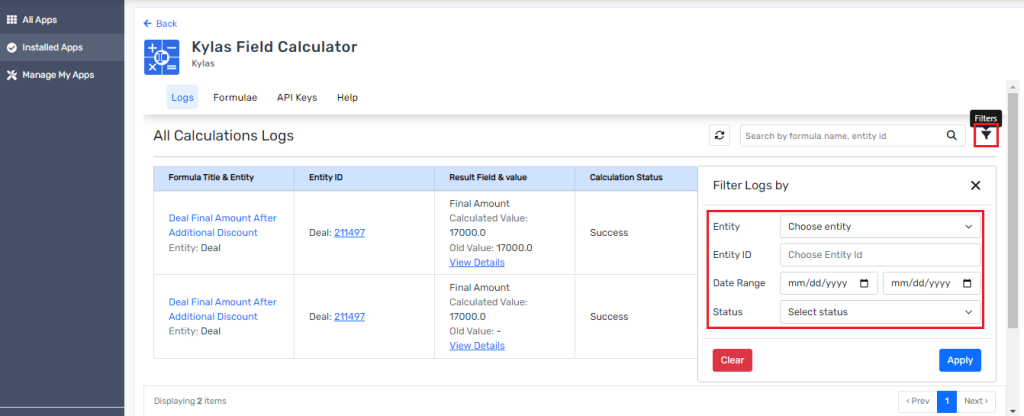
- View all your performed calculation details under the logs tab along with the below details;
- Entity ID on which the calculation was performed.
- Which formula was used
- View the change details
- Activity timestamp details
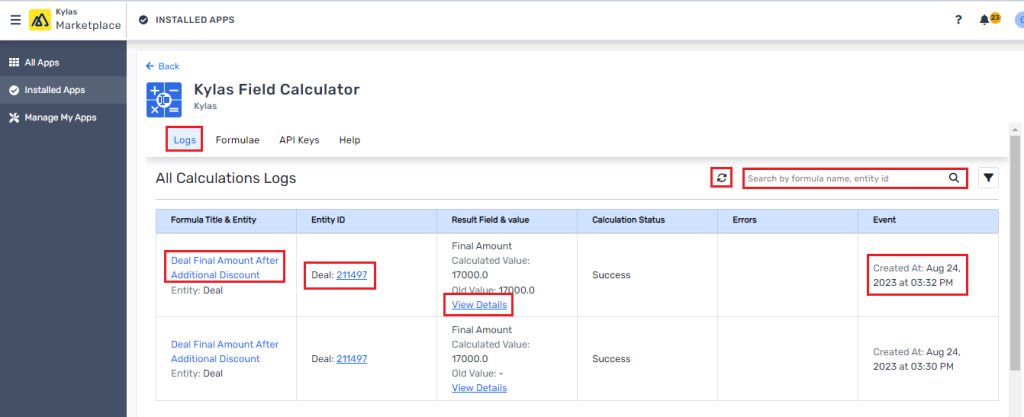
- Look for a specific detail with the help of filter option.