



Overview
Kylas Product Recommendation App enables users to search for the most relevant products based on Lead or Deal requirement from the full list of products from Kylas.
Users can map their Lead and Deal fields with Kylas to let the app search relevant products basis on the values available in Lead and Deal.
Users can map their Lead and Deal fields with Kylas to let the app search relevant products basis on the values available in Lead and Deal.
How will it work?
Kylas product recommendation app enables users to attach relevant products on the Leads and Deals from complete list of products. The app allows users to map Lead and Deal fields with Products for the app to search relevant products based on Lead or Deal fields.
Please follow below steps to setup the app:
Please follow below steps to setup the app:
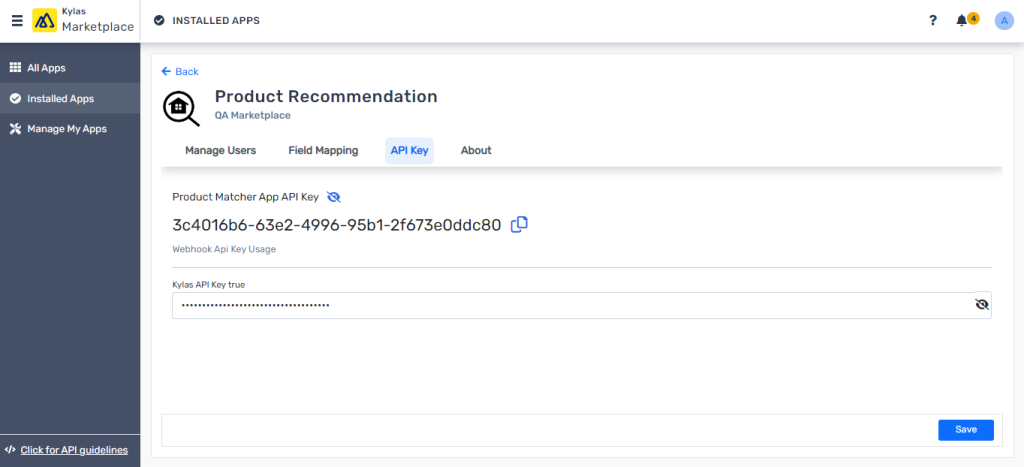
Enter Kylas API key:
- Login to the Kylas product recommendation app and click on ‘API keys’ section
- Enter the Kylas API key – Login here from tenant account to get the API key.
- Click ‘Save’ to save the API key
Manage users:
Invite Kylas users to use the app
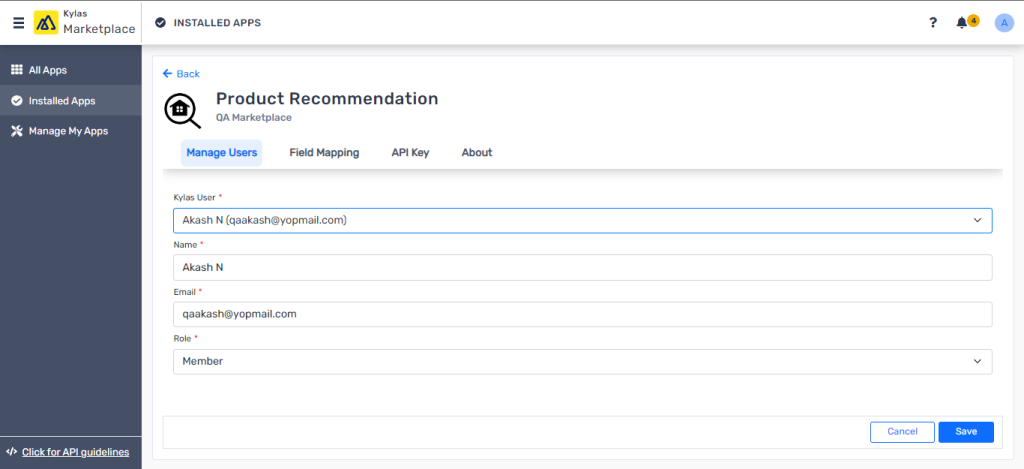
- Navigate to Manage Users
- Click ‘Add User’
- Select one of the Kylas users that you would like to invite to use the product recommendation app
- The Email id and Name of the user will be automatically filled
- Choose the role from Member and Admin
- Click ‘Save’
- The selected use will receive an invitation email on their mail id and the user can login with their login credentials after verification
- The users with Role as Admin will see all menu items in the app after login
- The users with Role as Member will see only About page and they will also be able to search the products from the Lead and Deal details page as mentioned in next steps
Field Mapping:
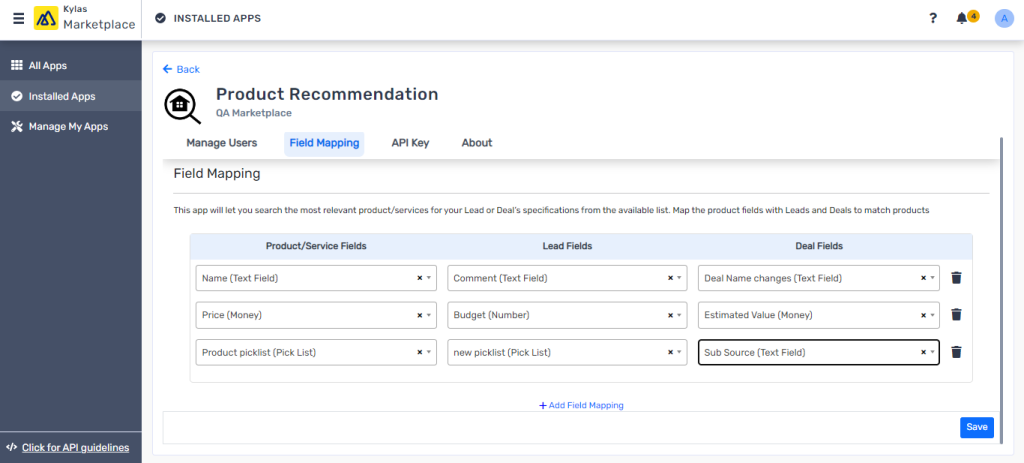
To allow the app to search relevant products from the list, map the Lead and Deal fields with Product fields on the basis of which you would like to let the app search. For example, if you want all the products that match the Lead’s budget, map lead ‘Budget’ field with ‘Price’ field of Product.
- Navigate to ‘field Mapping’
- Choose the Product, Lead and Deal field from the available dropdowns
- Click ‘Save’ to save the mapping
Search relevant Product from Lead or Deal details page
- Navigate to Lead or Deal details page after installing the application
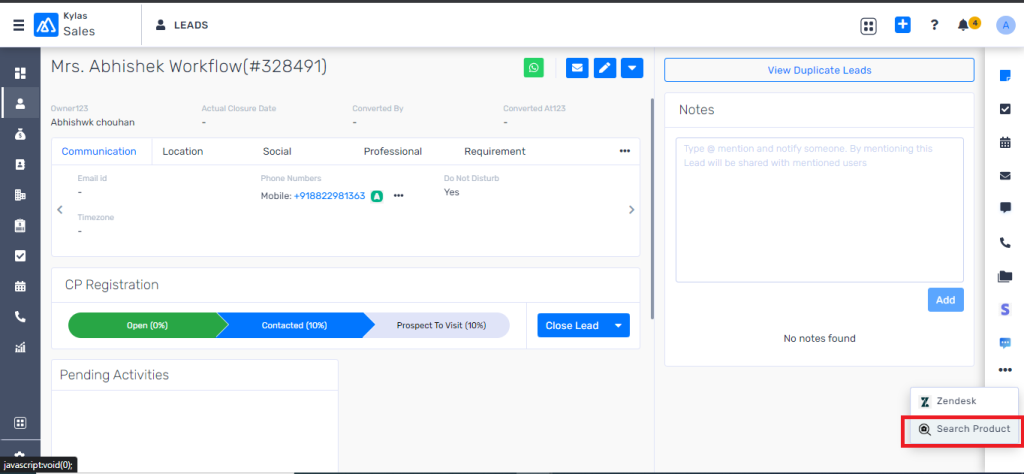
- Click ‘Search Product’ action from the right-hand side activities section as shown below
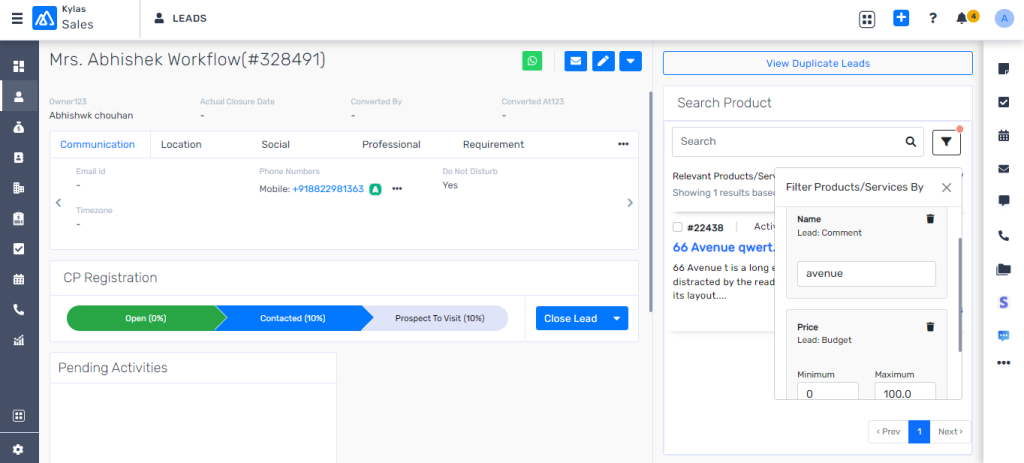
- The application picks the value from a Lead field and inserts its value in the corresponding mapped Product fields. The value available in the ‘Comment’ field of Lead has been put into the ‘Name’ field of Products to search the product that contains name as “avenue” similarly it picks value of ‘Budget’ field from Lead and search in the ‘Price’ field based on mapping
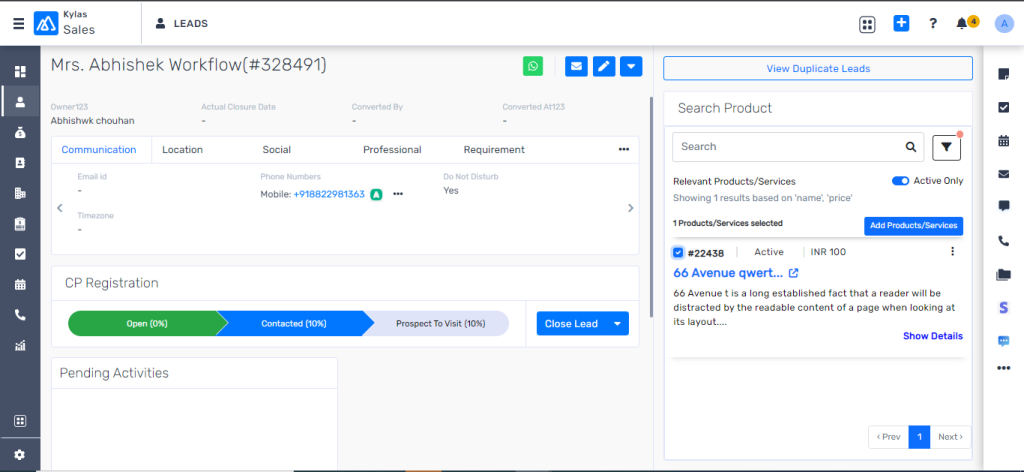
- Select the checkbox or click on the overflow menu available with each product coming in the search results
- Click on ‘Add Products/Services’
- It will add the selected products or services on the Lead or Deal automatically