




Overview
Bi & Analytics app helps users to connect their Kylas database with any BI and Analytics tool e.g. Power BI, Adobe analytics, or Zoho analytics. Google analytics and looker studio etc.
Users can connect their Kylas database with a BI or Analytics tool and can generate complex cross-entity reports that involve data from multiple entities such as - Deal revenue by Contact City, Number of Leads owned by Teams, Revenue generated by Teams, Funnel reports, etc.
Users can connect their Kylas database with a BI or Analytics tool and can generate complex cross-entity reports that involve data from multiple entities such as - Deal revenue by Contact City, Number of Leads owned by Teams, Revenue generated by Teams, Funnel reports, etc.
Install the app :
- Navigate to the Kylas marketplace.
- Click on the app icon and navigate to the app details page.
- Click 'Install'.
- Enter your Kylas account login credentials and authenticate.
- Check the permissions required by the app and click 'Accept and Install'.
Sign up and Sign in after installation:
- Sign up on the BI and Analytics marketplace app with your email ID.
- Verify the email address and Login.
- Enter your Kylas account API key under the 'API keys' section as shown below.
View Database connection details:
We will publish a database connection detail in the app through which you can connect the database with BI and Analytics tools to get the data.
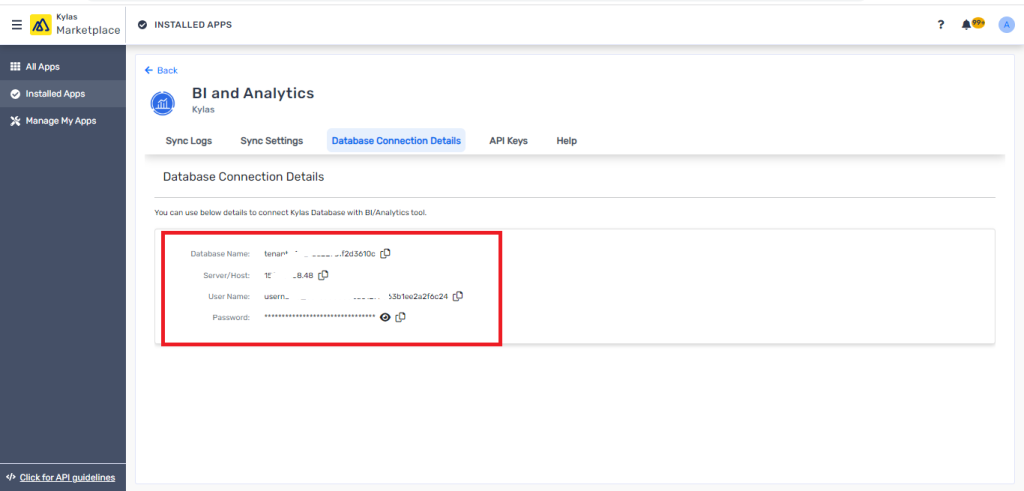
- In the BI and Analytics marketplace app, navigate to the 'Database connection details' section.
- As BI and Analytics is a paid marketplace application, you need to contact Kylas support to get the application setup for your account, to do so, click 'Request access.
- We will notify the Kylas support team and they will connect with you to enable BI and Analytics on your account.
- After the app is enabled, you will see Database connection details in the section as shown below.
Sync Settings:
Follow the below steps, in order to sync the data with BI and Analytics.
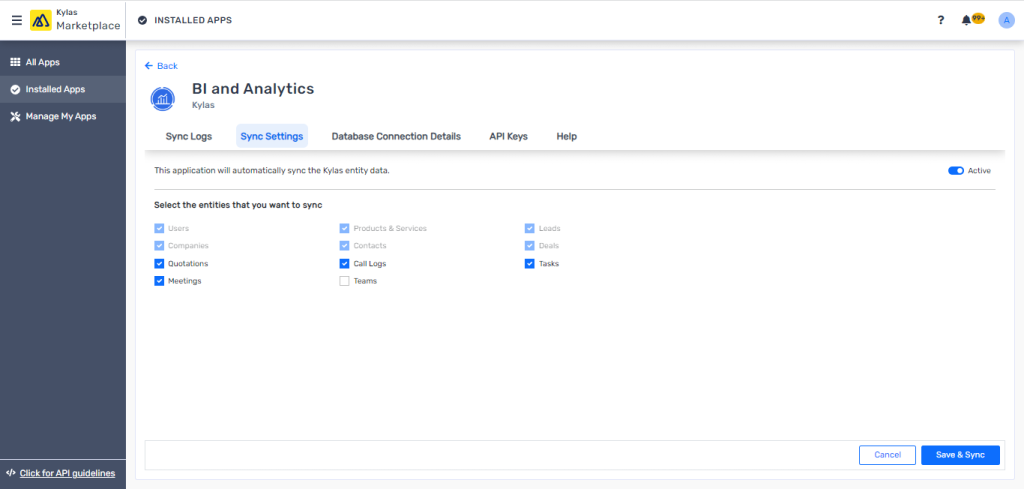
- Navigate to 'Sync settings'.
- Click on 'Edit sync settings'.
- Choose the entities you would like to sync with BI and Analytics (for a better experience please choose all available entities)
- Make the setting active by clicking on the 'Active' toggle on the top right.
- Click 'Save and Sync'.
View mapping:
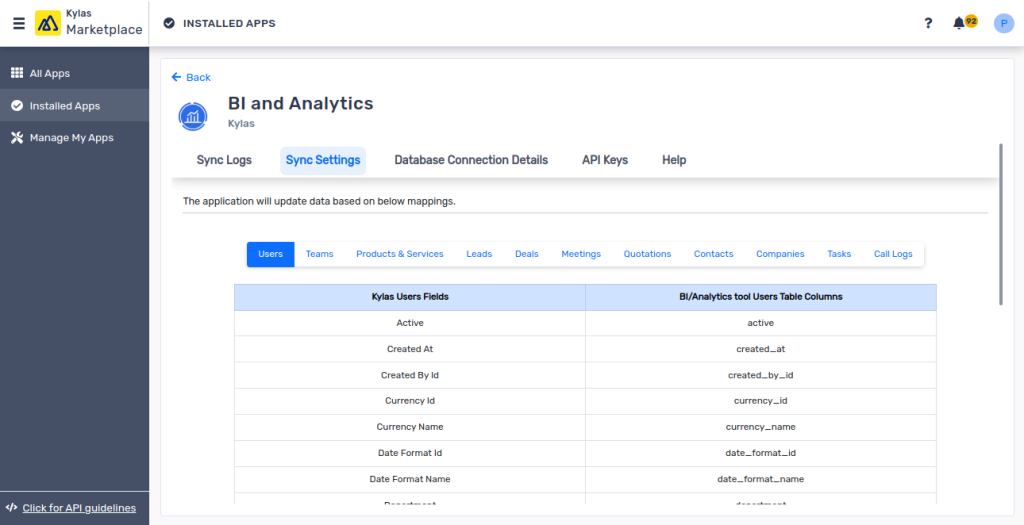
View the Kylas field name vs the table in the BI and Analytics database.
- Click 'View mapping' on the Sync settings page.
- View the Kylas fields name and the corresponding column name in the BI and Analytics database.
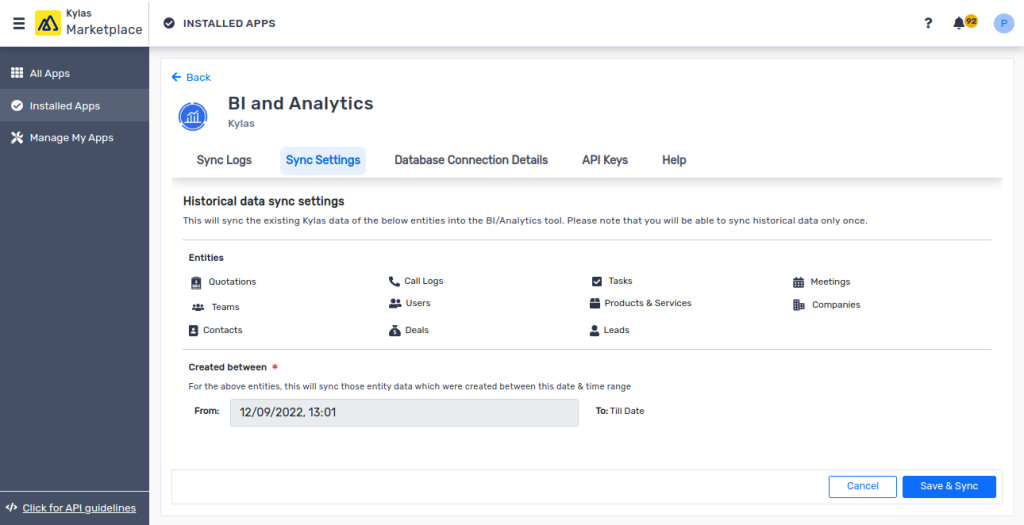
Sync historical data:
When you save the sync settings, we will start listening to Kylas Webhooks and sync the database for records created, updated, or deleted within BI and Analytics. On top of that, if you wish to sync your existing data, please follow the below steps.
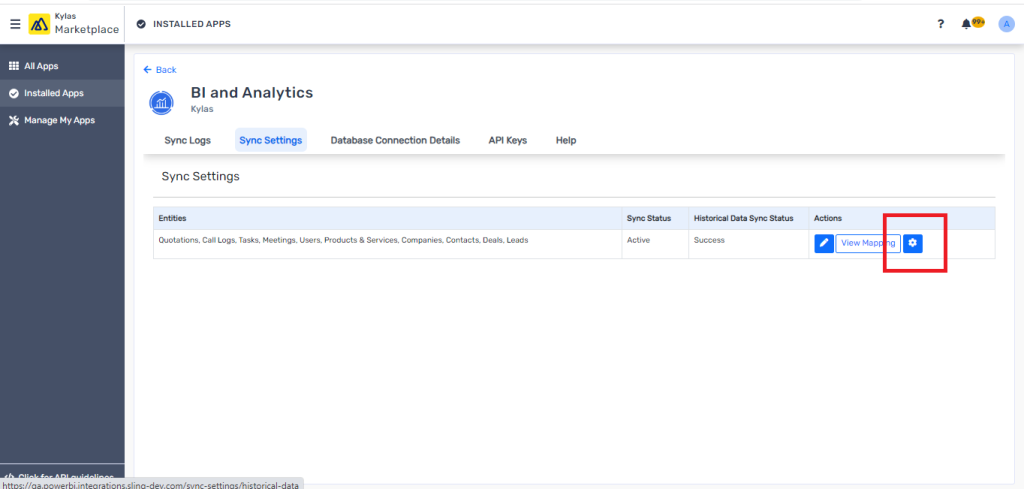
- Click the gear icon shown on the 'Sync settings' page.
- Choose the date from which you would like to sync historical data.
- Click 'Save and Sync'.
- Your historical data syncing will start in the background.
Connect database with BI and Analytics:
Please follow the below steps to connect Kylas database for reporting.
- Look for the entry point of the database connection of your BI tool e.g. Power BI, Zoho Analytics, Google looker studio, etc.
- Search for the 'PostgreSQL database' connection.
- Enter the host/server, and database name and use the credentials shown on the 'BI and Analytics integration' application.
- Connect the database.
- Set auto-refresh or keep refreshing manually to get the latest data.
Create relationships between data tables:
Relationships between two or more tables are very important to fetching correct reports, especially for cross-entity reports. Some of the BI tools available in the market will be able to detect the relationships between the Kylas database tables automatically however if they are not able to, then you can go ahead and create relationships manually.
- We have represented the relationship type as well like one-one (1-1), one-many (1-*), many-one (*-1), or many-many (*-*).
- Every BI and analytics tool has its own configuration to handle relationships, some tools do not support multiple active relationships simultaneously.
- Please explore how to create relationships in your BI and Analytics tool and create relationships in the help section after installing the app.
| Relationship type | Meaning | Example from Kylas |
| One to Many | When one record of the first table can be associated to many records from the second table. | Company - Contact since a Company can be associated with multiple Contacts, but a contact can have only one Company associated with it. |
| Many to One | When many records of the first table can be associated with one. | Lead - Pipeline since many Leads can have the same pipeline. |
| Many to Many | When one record of the first table can be associated with multiple records and vice versa. | Deal - Contacts since a Deal can have multiple contacts and a Contact can also have multiple Deals associated with it. |
| One to One | When one record of first table can be associated with only one record of the second table and vice versa. | Currently no two entities in Kylas are associated with this type of relation. |